Welcome
 Automate
 Ensure
 Analyze
 Other
Other Download
Security
Compliance Recording in 2026: a complete guide


 Download

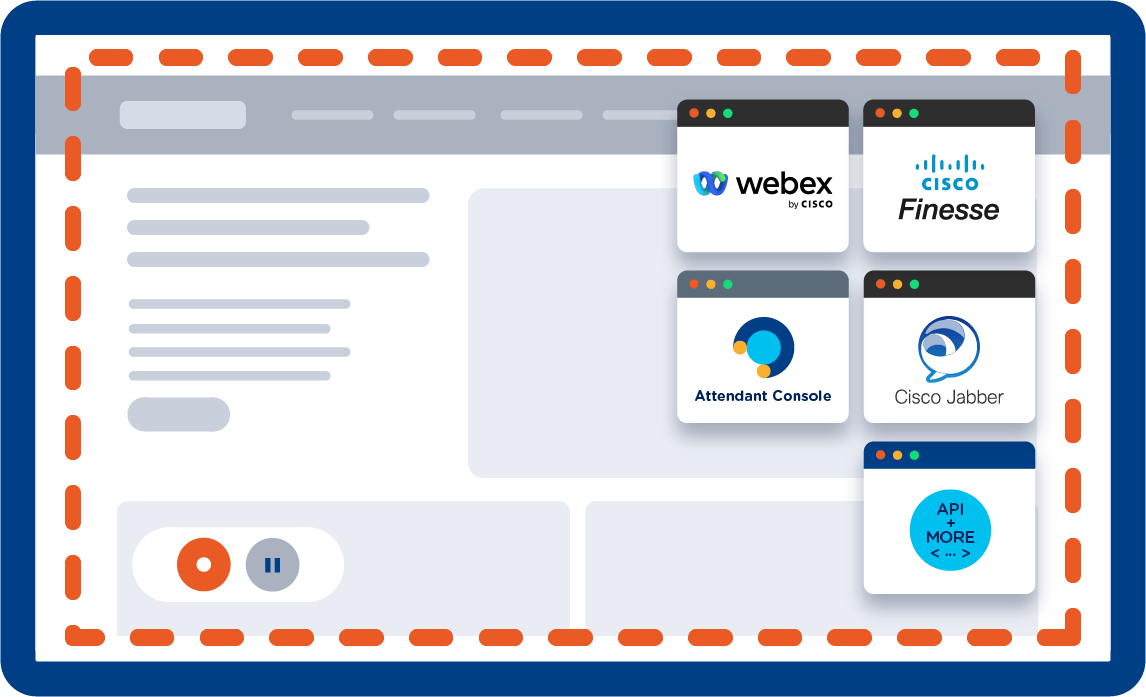
When Call Recording is engaged, agents’ voice and screen will both be captured. It records up to 2 desktop screens per client, with unlimited storage on the Imagicle Cloud.
Get the complete picture of agent-customer interactions with screen and monitor both on-site and remote agents’ behaviour.
Get all the pieces you need to find and address workflow inefficiencies, better train agents and learn from real-life successes, failures, and use cases.
Understand how agents are using applications and tools, find the best way to handle data, revise your scripts to improve future strategies.
Screen Recording supports compliance recording with file encryption, secure storage, and screen masking to blank sensitive information.
Analyze insight of call recording while playing the related screen recording directly inside Imagicle Voice Analytics, getting the real power of conversation analysis.
When Call Recording is engaged, agents’ voice and screen will both be captured. It records up to 2 desktop screens per client, with unlimited storage on the Imagicle Cloud.
Get the complete picture of agent-customer interactions with screen and monitor both on-site and remote agents’ behaviour.
Get all the pieces you need to find and address workflow inefficiencies, better train agents and learn from real-life successes, failures, and use cases.
Understand how agents are using applications and tools, find the best way to handle data, revise your scripts to improve future strategies.
Screen Recording supports compliance recording with file encryption, secure storage, and screen masking to blank sensitive information.
Analyze insight of call recording while playing the related screen recording directly inside Imagicle Voice Analytics, getting the real power of conversation analysis.

Record 100% of calls, start/stop, skip sensitive information, get detailed reports and comply with data regulations.
Learn More
AI-powered add-on of Imagicle Call Recording to get transcripts and sentiment analysis of your conversations.
Learn More
Manage your calls quickly and professionally: transfer, park, notify calls on hold and check your colleagues' status.
Learn More
 Download
Download
Download
Download
Download
Download
Download
 Watch
Watch
Watch
Watch
Download
Download
Download
Download
Watch
Watch
Watch
Watch
Download
Download
Download
Download
Imagicle Screen Recording is an add-on to Imagicle Call Recording that captures the agent’s screen activity during customer interactions. It records what happens on the agent’s desktop during an ongoing call and, when the call or recording stops, a video file is saved and made available in the Call Recording Search & Play page, synchronized with the related voice recording. This gives supervisors a complete, unified view of the interaction for quality assurance, training, compliance, and customer experience.
Imagicle Screen Recording supports all environments compatible with Imagicle Call Recording. This includes Microsoft Teams (certified compliance recording), Webex Calling, Webex (), Cisco UCM, and SIPREC-based call environments. If Call Recording is supported in your deployment, Screen Recording can extend it seamlessly.
Screen Recording captures the agent’s workstation desktop, including multiple monitors, through the Screen Logger Workstation component. Each enabled workstation can be recorded while the user is on a call. Screen video files are first stored as .webm on the Screen Logger Server (e.g. C:\\EkisaServerData\\) and then encrypted and copied to the standard Call Recording storage folders according to UCX Suite Data Management settings. Storage sizing depends on agents, call volume, and retention time; Imagicle provides a dedicated Call & Screen Recording Channel and Storage Calculator to help dimension disk space. See Imagicle Screen Recording add-on and the overview in Call Recording for UCX Suite.
Yes. Screen recording sessions are tied to the corresponding voice recording: Screen Recording is triggered for users who are already enabled for Call Recording, and when the call or recording ends, a screen video file is generated and associated with that call. Playback from the Call Recording Search & Play page shows audio and the related desktop activity for the same interaction.
Yes. Screen Recording is an add-on to Imagicle’s compliance-grade recording solution which adds encryption, role-based access, configurable retention, legal hold, and detailed audit logs to support frameworks such as PCI-DSS, GDPR, HIPAA, and MiFID II. In addition, global settings let you blank out the screen recording while audio is paused, effectively masking sensitive information (e.g., payment data) during specific moments of a call.
Users access their recordings via the Imagicle web portal (My Recordings) or supported clients (e.g., Webex gadget), where they can search, filter, and play audio and (if enabled) screen recordings. Depending on permissions configured by the administrator, users can download call audio as MP3 and screen recordings as .webm video files from the Search & Play page.
Yes. Screen Recording is based on a client/server architecture: each enabled agent PC runs the Screen Logger Workstation, which connects over the network to the Screen Logger Server in UCX Suite. As long as the workstation can reach the configured server (via the required ports and FQDN/IP resolution), the desktop can be recorded regardless of whether the user is in the office, at home, or in a hybrid setup.
Absolutely. By combining voice and screen, supervisors can review real interactions, understand how agents use CRM and line-of-business apps, identify process gaps, and coach agents with concrete examples. When integrated with Imagicle Voice Analytics, they can also analyze transcripts, sentiment, and keywords while viewing the related screen capture for deeper performance insights.
Imagicle Screen Recording uses a client/server design. On the UCX Suite server you install the Screen Logger Configurator Service, Screen Logger Screen Server, and Screen Logger Management Studio; on each agent PC you install the Screen Logger Workstation (and optionally Screen Player). The KB also specifies additional CPU/RAM resources for concurrent screen recordings, extra disk for video storage, and the UDP/TCP ports that must be allowed in firewalls.
Screen Recording is ideal for contact centers, customer support teams, financial institutions, healthcare providers, insurance companies, and any organization that handles sensitive information or must meet regulatory requirements. It is also a powerful tool for training new agents and improving process efficiency.
When the call (or manual recording session) ends, the Screen Recording engine finalizes a .webm video file on the Screen Logger Server and then imports it into the Call Recording storage path, where it is encrypted and associated with the corresponding call. The video becomes visible in the Imagicle web portal under the same Search & Play interface used for voice recordings, from which authorized users can search, play, and download it. This workflow is described in Imagicle Screen Recording UCX Suite Settings and Imagicle Screen Recording add-on.
Yes. Global Screen Recording settings allow administrators to define the behavior when audio recording is paused, for example blanking out (blacking out) the screen recording while the call is paused, so that sensitive on-screen content such as card details or personal information is not captured. This provides a practical way to support PCI-DSS and privacy requirements.
Yes. Screen Recording works at the workstation level: as long as the Screen Logger Workstation service can reach the Screen Logger Server/Configurator over the configured ports and FQDN/IP (even across VPN or in a VDI/remote desktop environment), the agent’s desktop can be captured. Firewalls and NAT must allow the required ports (e.g., UDP 4490 and TCP 4488–4489) documented in Imagicle Screen Recording add-on and Network protocols and ports in use.
Call audio is stored as compressed MP3 files (32 kbps) in the Call Recording storage, while screen recordings are saved as .webm video files optimized for web playback and download. Users with the right permissions can download both formats from the web portal.
Yes. Retention rules, storage locations, and encryption policies are defined in Call Recording’s global settings, and Screen Recording inherits these policies because its video files are stored in the same recording repository. Role-based permissions control who can see, play, download, or delete audio and screen recordings; Screen Recording settings also let you choose which user roles are allowed to download video sessions. All actions are logged for auditing.
Record 100% of calls, start/stop, skip sensitive information, get detailed reports and comply with data regulations.
Learn More
AI-powered add-on of Imagicle Call Recording to get transcripts and sentiment analysis of your conversations.
Learn More
Manage your calls quickly and professionally: transfer, park, notify calls on hold and check your colleagues' status.
Learn More